


Manage items
Create an item
Add billable items such as licenses, entry fees, or deposits
Unlike subscriptions, which renew every season, items represent one-time charges assigned to members: licenses, entry fees, key deposits, or lesson registration fees. These items do not renew automatically and must be assigned manually to each member concerned.
Go to item management
Go to the main menu: SETTINGS → Manage invoicing. Scroll to the bottom of the page to find the button "Create items".
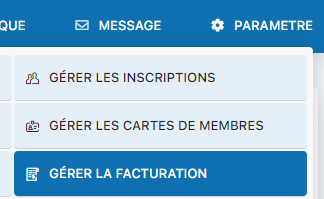
Go to the Settings menu and select Manage billing
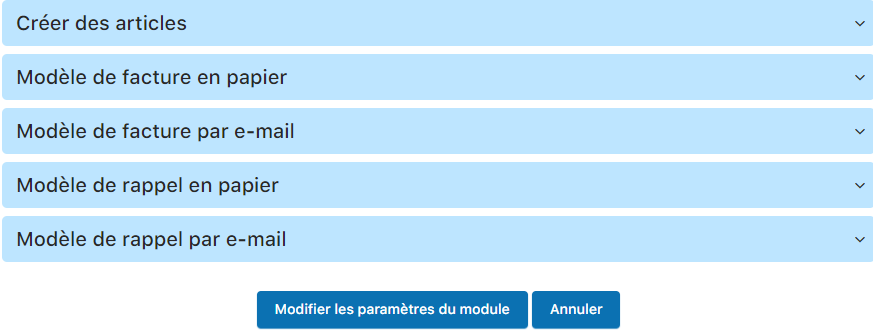
The items section is at the bottom of the billing page
Fill in the item form
Enter the name of your item (for example, "Swiss Tennis License"). You can add several age-based pricing tiers by clicking the icon "+". Once the form is complete, click "Add item" to save.
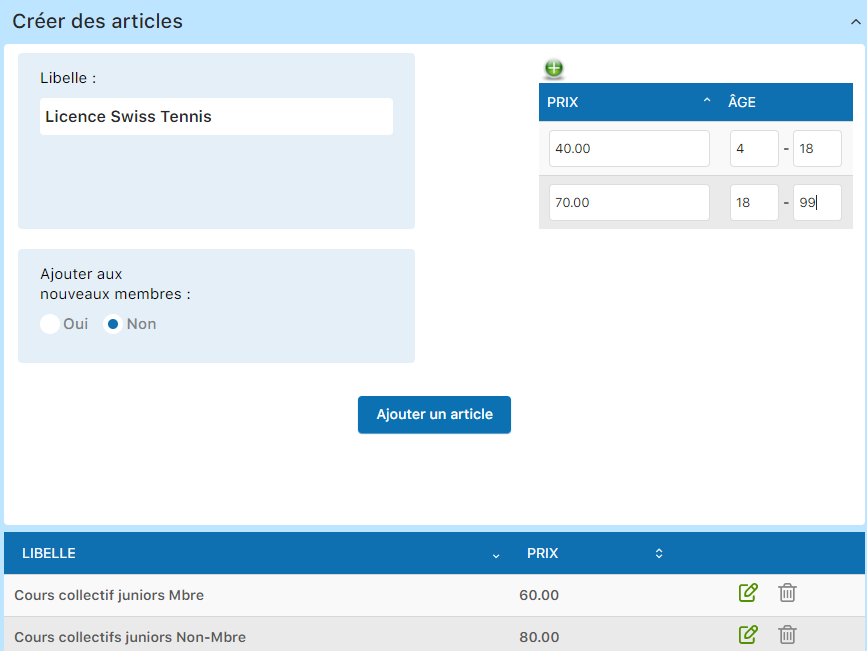
Item creation form with age-based pricing options

The newly created item appears in the list
Important for accounting
If you use accounting software, make sure to fill in the additional fields: Account number and Item code. This information is essential for synchronization with your accounting system.
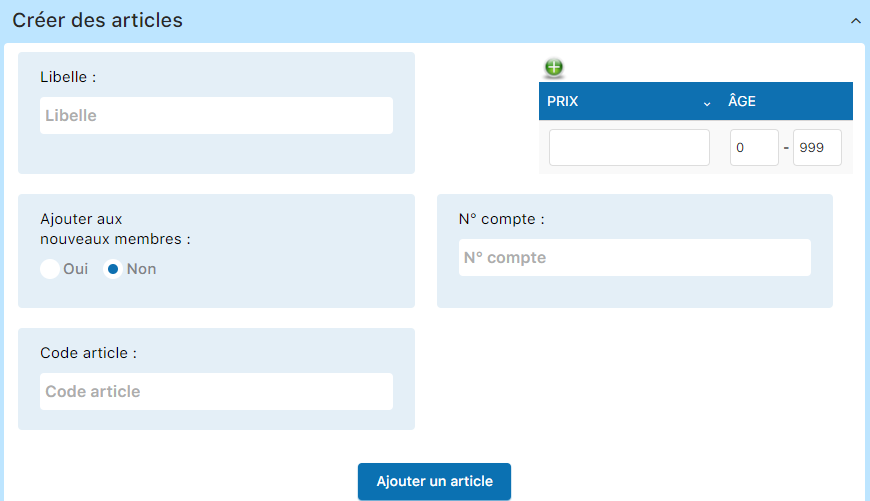
Fill in the accounting fields for synchronization
Good to know
If your new item needs to be added to an existing item group, please contact the Plugin.ch team to have it added to billing.
Plugin.ch Tutorial — Manage items