


Manage courts
Manage court usage
Block courts, book them for tournaments, and manage recurrences
This comprehensive tutorial covers advanced management of court usage, including temporarily blocking courts, booking them for special events such as tournaments, and managing recurrences. These features let you finely control the availability of your facilities.
Section A: Block a court
Go to the recurrence management module
From the main menu, click BOOKING, then select Manage recurrences. This is the interface from which you can block courts on a recurring basis.
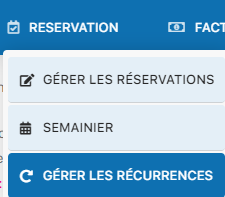
Access to the menu for managing recurrences
Fill in the block form
Complete the recurrence form with the block information. For example, to close courts 1 to 4 until 12:00 (morning):
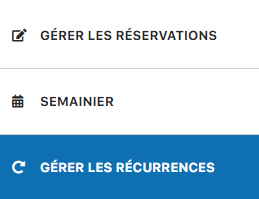
Access to the recurrence management page
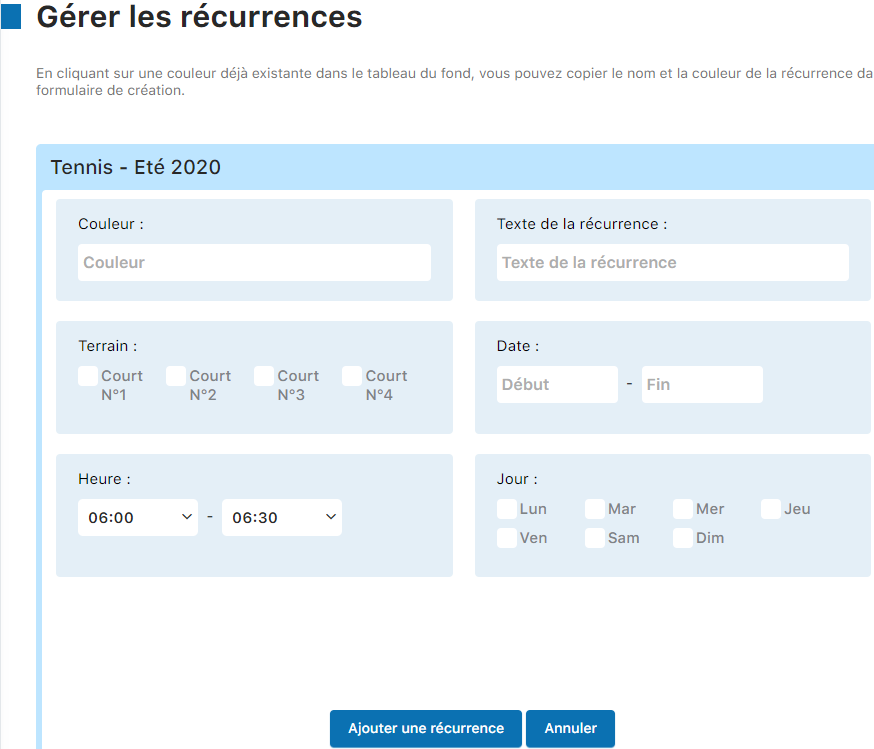
Form for entering the block settings
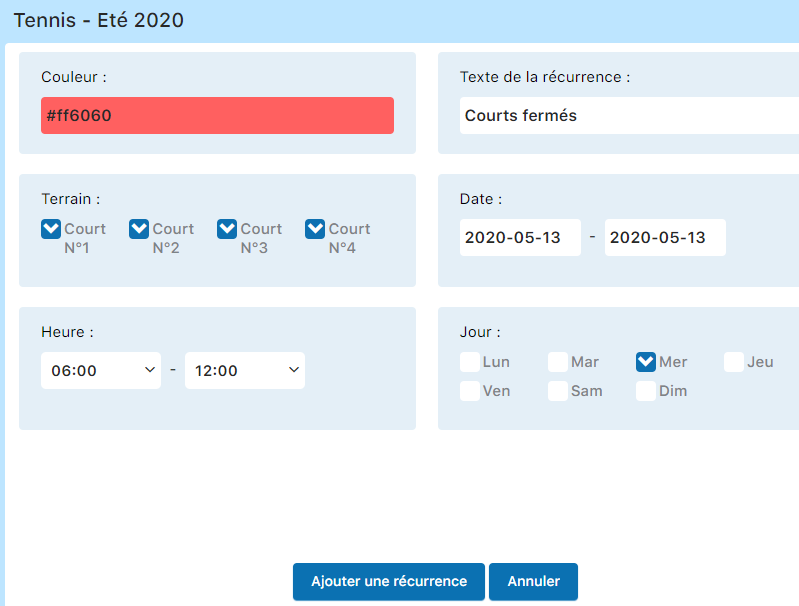
Example: courts 1-4 closed in the morning until 12:00
Key points of the form:
- Select the courts concerned (e.g., 1, 2, 3, 4)
- Set the block hours (e.g., 06:00 to 12:00)
- Check the relevant days of the week
- IMPORTANT: Also check the specific dates
Once all the settings are configured, click Add a recurrence to confirm the block.
Warning: You must check both the days of the week AND the specific dates for the block to be correctly applied in the system.
Section B: List and unblock
View the list of blocks
At the bottom of the recurrence management page, you will find the full list of all existing blocks:
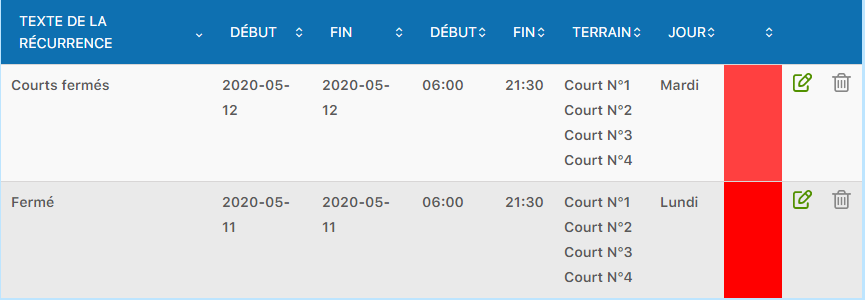
Display of all current blocks and recurrences
Unblock a court
To remove a block, click directly on the recurrence area in the booking board:
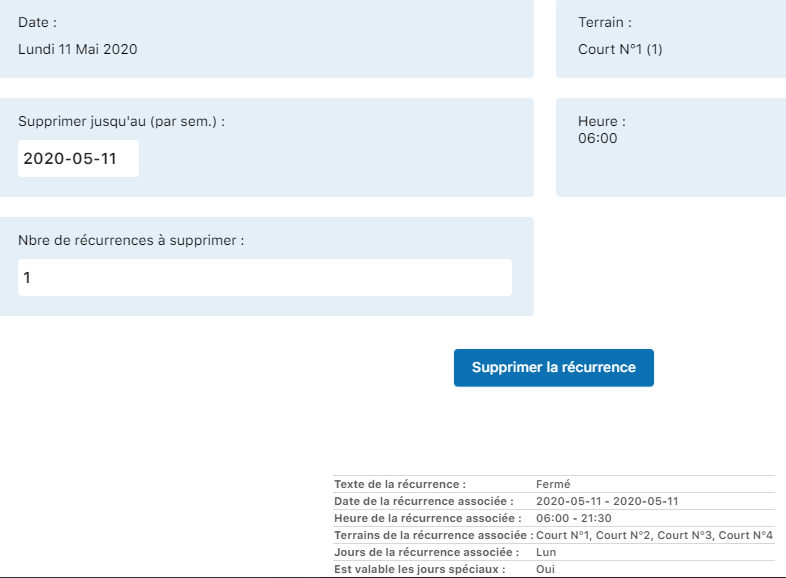
Click the block in the booking board
Once the block is selected, click the button Delete recurrence to remove it immediately.
Section C: Book for a tournament
Create a specific subscription type
To allow courts to be booked for a tournament, first create a specific subscription type (e.g., “Committee”) with an extended booking duration. Go to SUBSCRIPTION, then Manage subscription type :
Access to subscription type configuration
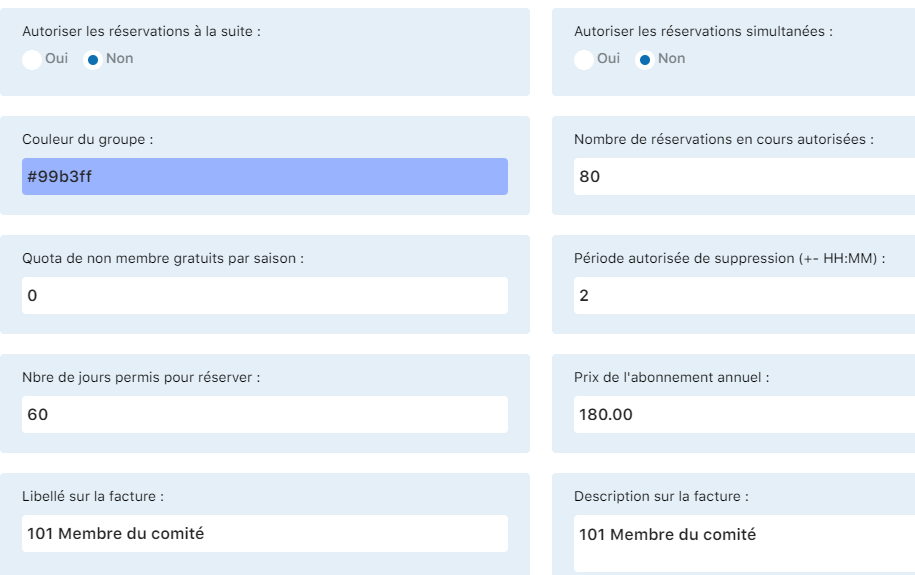
Form with the key setting: “number of days to book”
Assign the subscription to the manager
Assign this subscription to the member responsible for the tournament. Go to MEMBER, then Manage memberships :
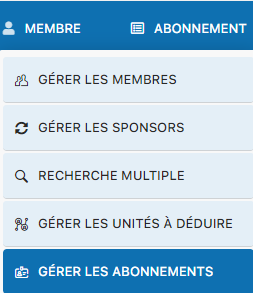
Access to subscription management

Selecting the member for assignment

Confirmation of the subscription assignment to the member
Create a recurrence authorization for the tournament
Configure the recurrence authorizations specific to the tournament. Go to SUBSCRIPTION, then Manage recurrence authorizations :
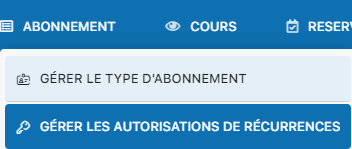
Access to recurrence authorization management
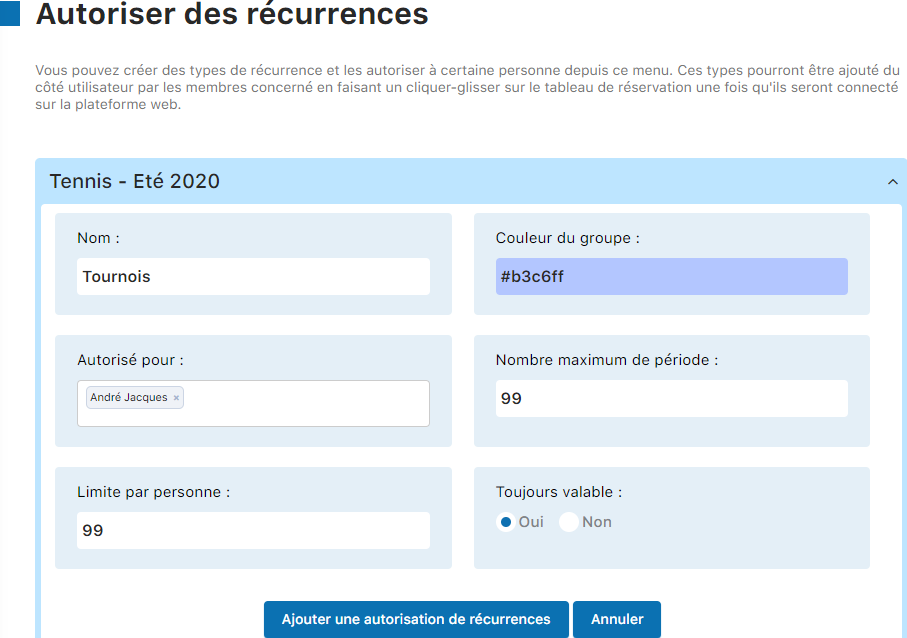
Authorization settings form

Example of a recurrence authorization for the tournament
Book the courts for the tournament
The authorized member can now log in to the system and make the bookings for the tournament. They access the booking board:
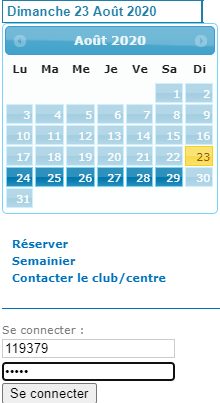
Authorized manager login
They select the tournament date and drag and drop on the desired time slots:
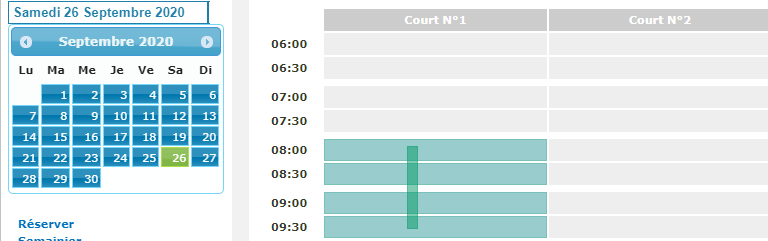
Drag and drop to select the slots
They select the recurrence type Tournaments :
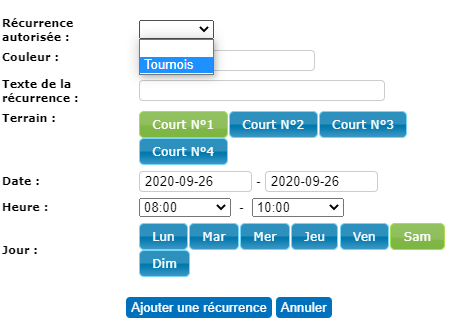
Choosing the recurrence type
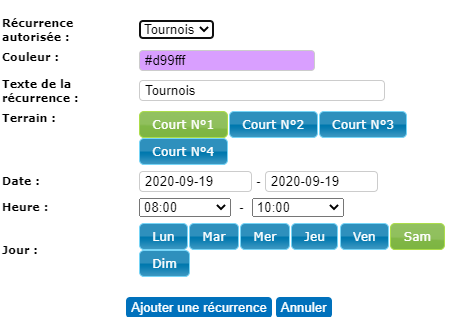
Confirmation of the selection
They fill in the form with the relevant courts, dates, times, and days, then click Add a recurrence to finalize the tournament booking.
Section D: Delete a booking
Delete a tournament booking
To cancel a tournament booking, first display the board containing the booking:
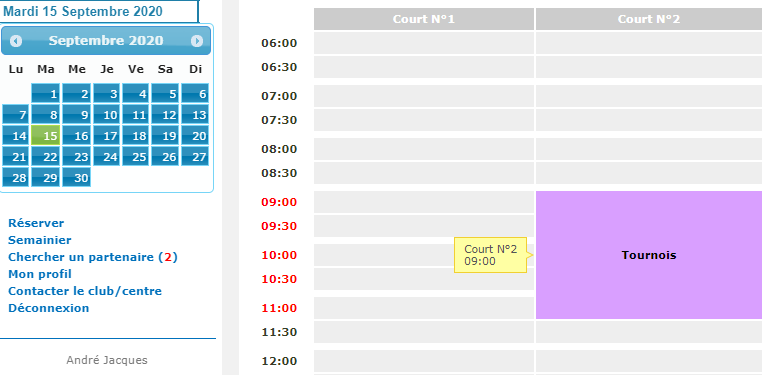
Board showing the tournament booking
Then click the booking to display its details:
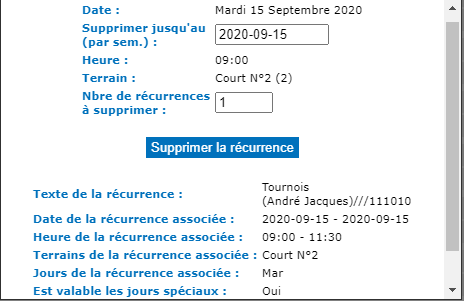
Details window with the delete option
Enter the number of recurrences to delete (the number of occurrences if the booking is recurring):
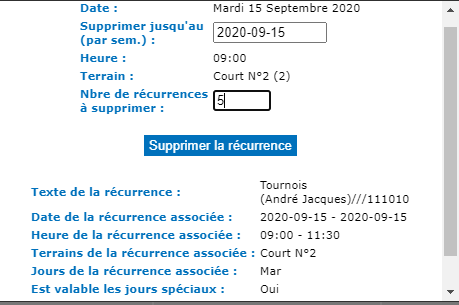
Entering the number of recurrences to delete
Click Delete recurrence to confirm and cancel the tournament booking.
Tip: The systematic approach outlined in this tutorial (creating the subscription, assigning it, authorizing it, and booking) ensures clear, traceable management of your tournament bookings. It also makes later changes and cancellations easier.
Plugin.ch Tutorial — Manage courts