


Manage automatic emails
Chapter 17 — Manage messages and emails
Category: Manage messages and emails
Introduction
Plugin.ch offers a powerful automatic email system to communicate with your members efficiently and without manual intervention. These emails are triggered automatically for specific events: subscription expiry, membership fee paid, new booking, account creation, etc.
Find out how to access this system, configure each type of email, and customize the messages to suit your club's needs.
Accessing automatic email management
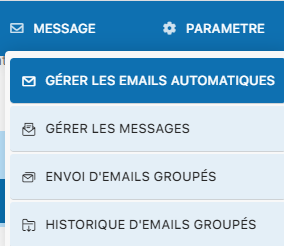
Go to the MESSAGE menu
From the main dashboard, click the menu MESSAGE in the navigation bar.

Select "Manage automatic emails"
Click the option Manage automatic emails to access the configuration dashboard.
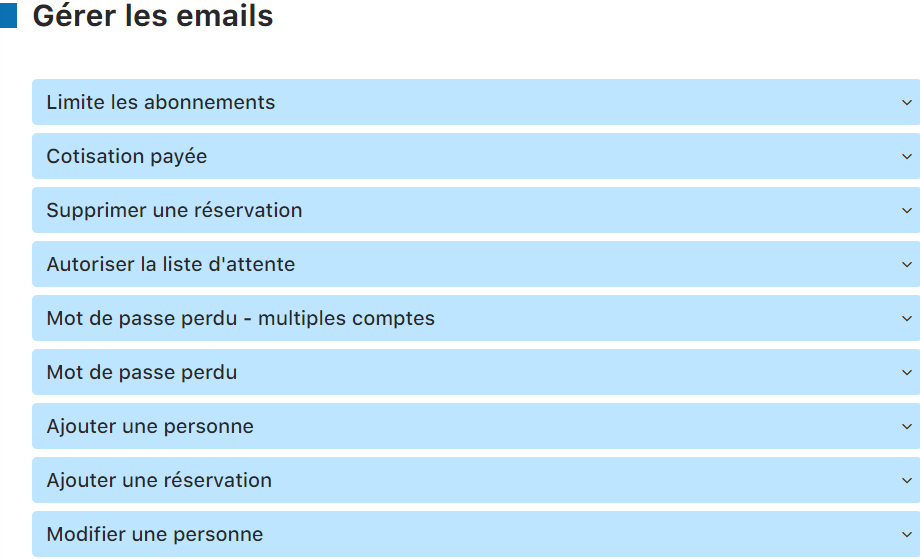
Overview
You get a complete overview of all the automatic emails configurable in your system.
💡 Tip
Automatic emails save you time by communicating automatically with your members. Be sure to regularly check the content and activation of these messages to maintain effective communication.
Types of automatic emails
Subscription limit
This automatic email notifies members when their limited subscription is about to expire. A timely alert allows members to renew before the deadline.

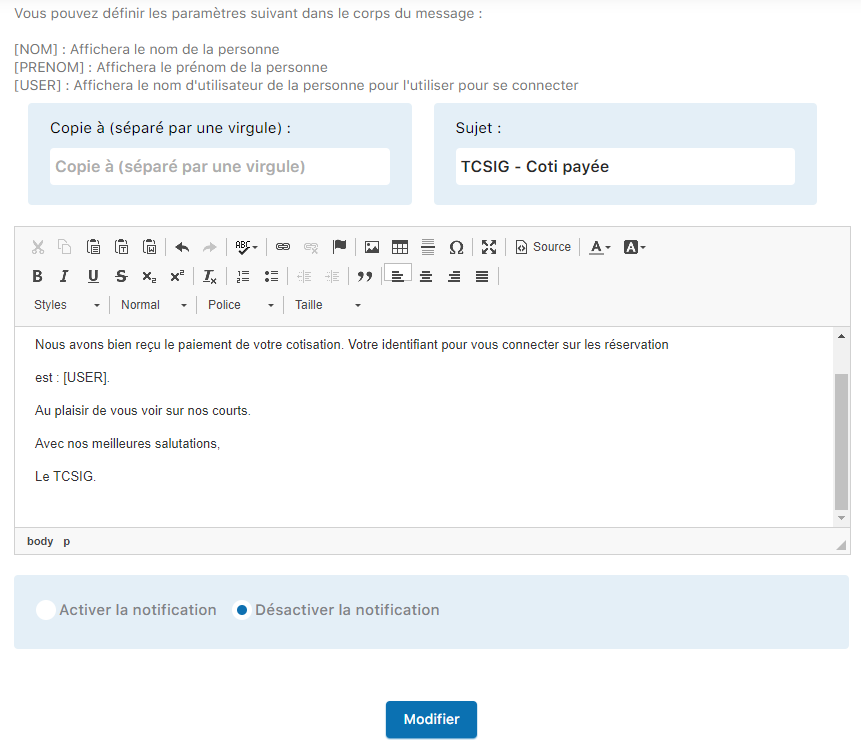
Membership fee paid
Sent automatically after a membership fee is paid. This email confirms the transaction to your member and provides them with a receipt. You can enable or disable it according to your preferences.

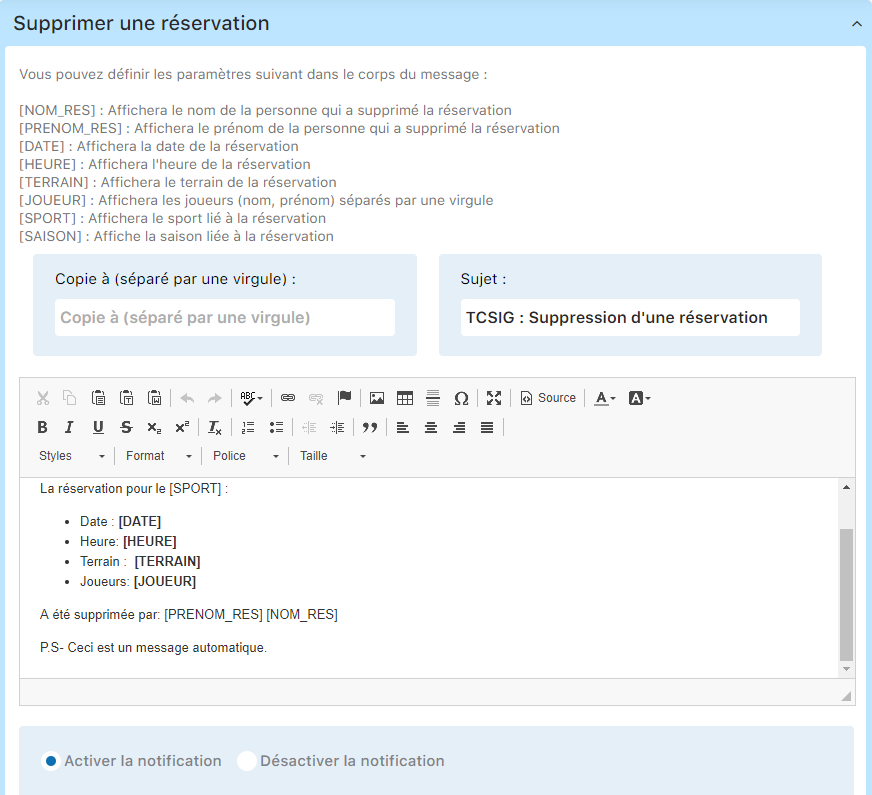
Delete a booking
This email is sent automatically when a booking is cancelled. It informs the member of the cancellation and the corresponding details.
Allow waiting list
Automatic notification to allow a member to join a waiting list for a lesson or event. This email confirms the waiting list registration.

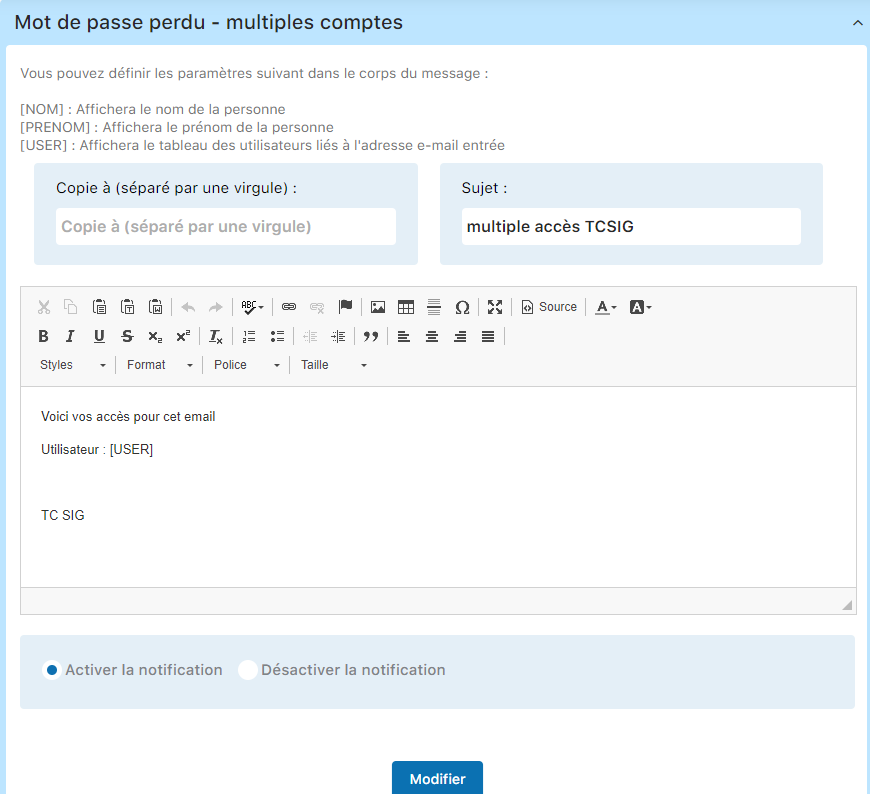
Lost password — multiple accounts
Email automatically sent to members who have several accounts and request a password reset. This email helps them identify the correct account.
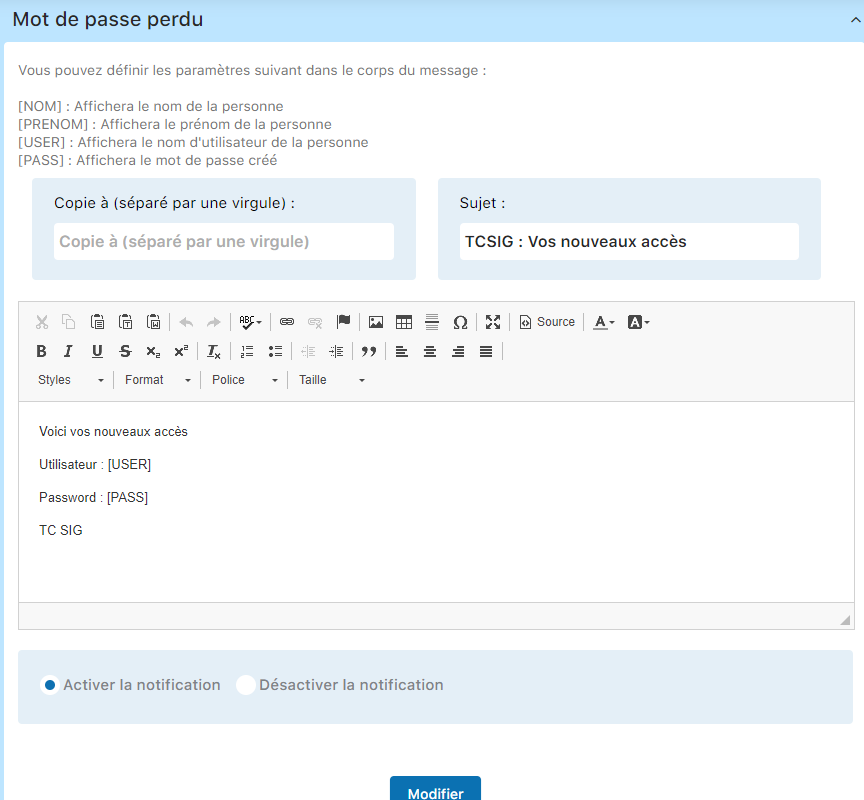
Lost password
Automatic email containing a temporary password generated by the system. Sent when a member requests a password reset. This is an essential email for account security and access.
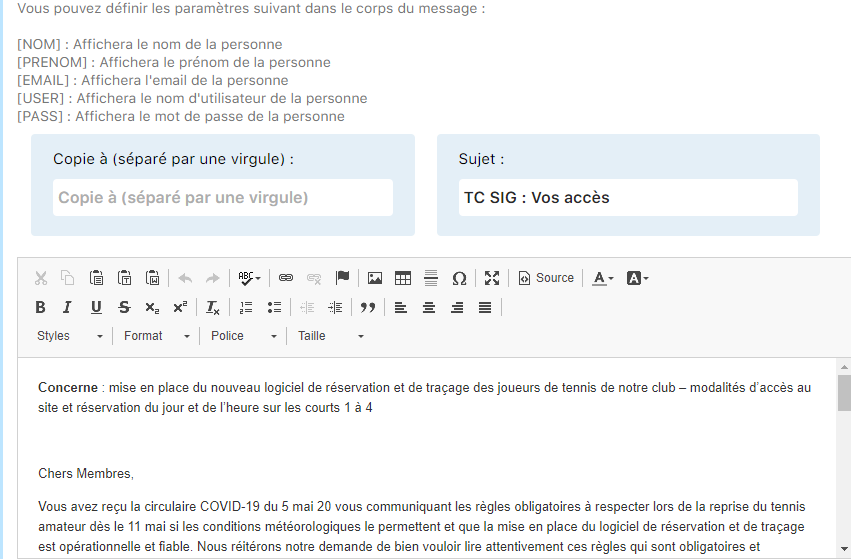
Add a person
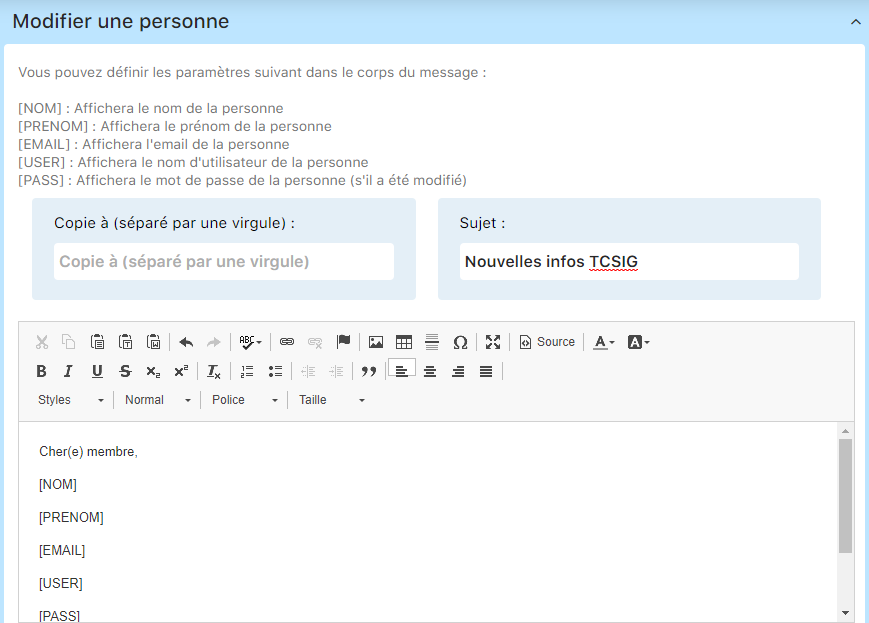
This email is sent automatically when a new member is created in the system. It may contain welcome information and initial login details.

To configure this email:
Click "Add a person"
Go to the configuration section for this automatic email.
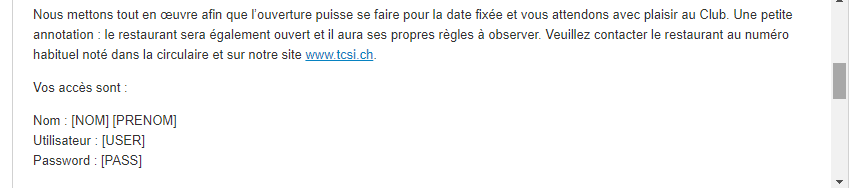
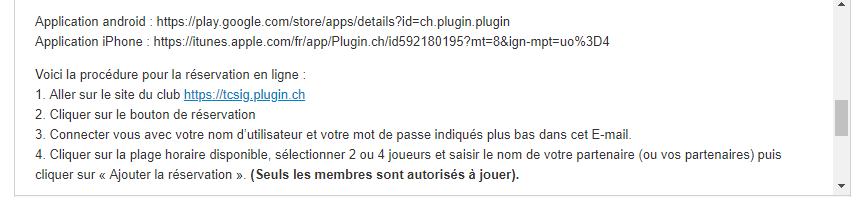

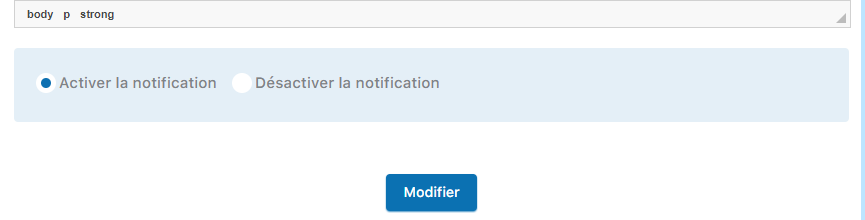
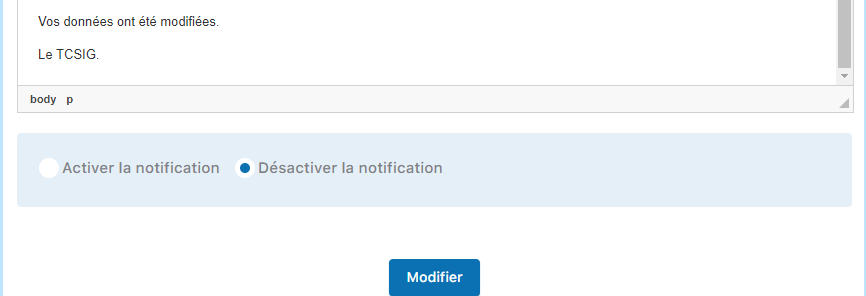
Click "Edit" to save
After configuring the email content, click the "Edit" button to save the changes.
Add a booking
Automatic email sent to the member when they make a new booking. It confirms the booking details and provides a reference for future follow-up.
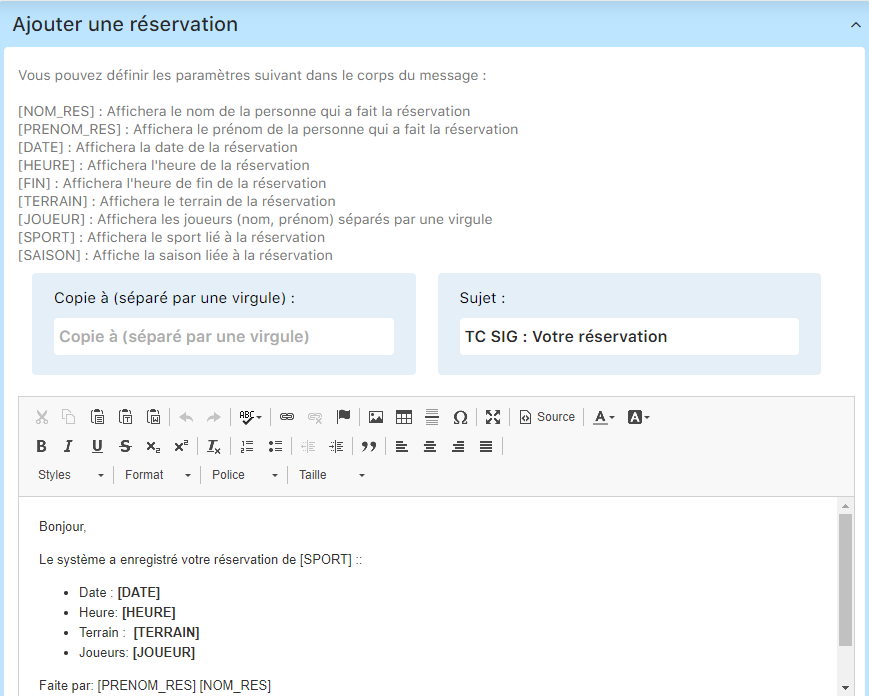
To customize this email:
Build the message with the desired fields
Select and organize the data fields you want to include in the email (date, time, location, instructor, etc.).
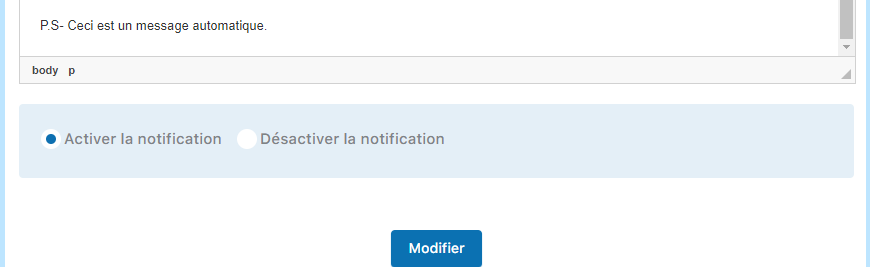
Enable and click "Edit"
Check the activation box if it isn't already checked, then click "Edit" to save your custom configuration.
ℹ️ Note
You can disable this notification at any time by moving the activation slider.
Edit a booking
This email is sent automatically when a member changes the details of an existing booking. It confirms the changes made and the new details.
⚠️ Important
Regularly check that your automatic emails are correctly enabled and that the content is up to date. Non-functional emails can affect communication with your members and their user experience.
Conclusion
Automatic emails are a key part of efficiently managing your tennis club. By correctly configuring each type of email and customizing the content to suit your needs, you provide a better experience for your members and save valuable time. Explore each option and adapt it to your workflow for optimal communication.
Plugin.ch Tutorial — Manage messages and emails